ETL (Extract-Transform-Load)

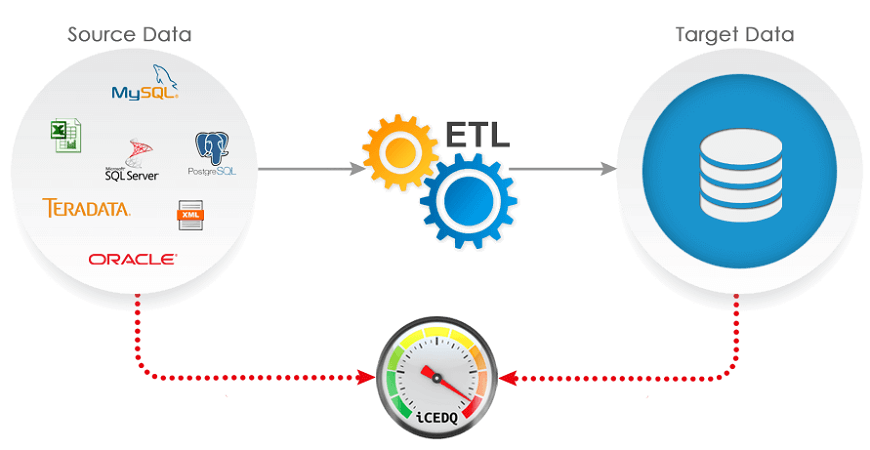
ETL comes from Data Warehousing and stands for Extract-Transform-Load. ETL covers a process of how the data are loaded from the source system to the data warehouse. Currently, the ETL encompasses a cleaning step as a separate step. The sequence is then Extract-Clean-Transform-Load. Let us briefly describe each step of the ETL process.

Process

Extract

The Extract step covers the data extraction from the source system and makes it accessible for further processing. The main objective of the extract step is to retrieve all the required data from the source system with as little resources as possible. The extract step should be designed in a way that it does not negatively affect the source system in terms or performance, response time or any kind of locking.
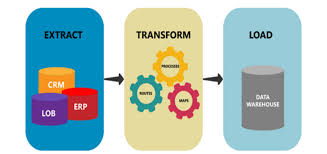
ETL Tools, Techniques, and Tips | Astera Software

There are several ways to perform the extract:

  • Update notification – if the source system is able to provide a notification that a record has been changed and describe the change, this is the easiest way to get the data.
  • Incremental extract – some systems may not be able to provide notification that an update has occurred, but they are able to identify which records have been modified and provide an extract of such records. During further ETL steps, the system needs to identify changes and propagate it down. Note, that by using daily extract, we may not be able to handle deleted records properly.
  • Full extract – some systems are not able to identify which data has been changed at all, so a full extract is the only way one can get the data out of the system. The full extract requires keeping a copy of the last extract in the same format in order to be able to identify changes. Full extract handles deletions as well. Learn more from ETL Testing Training

When using Incremental or Full extracts, the extract frequency is extremely important. Particularly for full extracts; the data volumes can be in tens of gigabytes.

Clean

The cleaning step is one of the most important as it ensures the quality of the data in the data warehouse. Cleaning should perform basic data unification rules, such as:

  • Making identifiers unique (sex categories Male/Female/Unknown, M/F/null, Man/Woman/Not Available are translated to standard Male/Female/Unknown)
  • Convert null values into standardized Not Available/Not Provided value
  • Convert phone numbers, ZIP codes to a standardized form
  • Validate address fields, convert them into proper naming, e.g. Street/St/St./Str./Str
  • Validate address fields against each other (State/Country, City/State, City/ZIP code, City/Street).

Transform

The transform step applies a set of rules to transform the data from the source to the target. This includes converting any measured data to the same dimension (i.e. conformed dimension) using the same units so that they can later be joined. The transformation step also requires joining data from several sources, generating aggregates, generating surrogate keys, sorting, deriving new calculated values, and applying advanced validation rules. Get more from ETL Testing Course

Load

During the load step, it is necessary to ensure that the load is performed correctly and with as little resources as possible. The target of the Load process is often a database. In order to make the load process efficient, it is helpful to disable any constraints and indexes before the load and enable them back only after the load completes. The referential integrity needs to be maintained by ETL tool to ensure consistency.

Managing ETL Process

The ETL process seems quite straight forward. As with every application, there is a possibility that the ETL process fails. This can be caused by missing extracts from one of the systems, missing values in one of the reference tables, or simply a connection or power outage. Therefore, it is necessary to design the ETL process keeping fail-recovery in mind.

Staging

It should be possible to restart, at least, some of the phases independently from the others. For example, if the transformation step fails, it should not be necessary to restart the Extract step. We can ensure this by implementing proper staging. Staging means that the data is simply dumped to the location (called the Staging Area) so that it can then be read by the next processing phase. The staging area is also used during ETL process to store intermediate results of processing. This is ok for the ETL process which uses for this purpose. However, tThe staging area should is be accessed by the load ETL process only. It should never be available to anyone else; particularly not to end users as it is not intended for data presentation to the end-user.may contain incomplete or in-the-middle-of-the-processing data.

ETL Tool Implementation

When you are about to use an ETL tool, there is a fundamental decision to be made: will the company build its own data transformation tool or will it use an existing tool?

Building your own data transformation tool (usually a set of shell scripts) is the preferred approach for a small number of data sources which reside in storage of the same type. The reason for that is the effort to implement the necessary transformation is little due to similar data structure and common system architecture. Also, this approach saves licensing cost and there is no need to train the staff in a new tool. This approach, however, is dangerous from the TOC point of view. If the transformations become more sophisticated during the time or there is a need to integrate other systems, the complexity of such an ETL system grows but the manageability drops significantly. Similarly, the implementation of your own tool often resembles re-inventing the wheel.

There are many ready-to-use ETL tools on the market. The main benefit of using off-the-shelf ETL tools is the fact that they are optimized for the ETL process by providing connectors to common data sources like databases, flat files, mainframe systems, xml, etc. They provide a means to implement data transformations easily and consistently across various data sources. This includes filtering, reformatting, sorting, joining, merging, aggregation and other operations ready to use. The tools also support transformation scheduling, version control, monitoring and unified metadata management. Some of the ETL tools are even integrated with BI tools.

To get in-depth knowledge, enroll for a live free demo on ETL Testing Certification

Workday Tools for SAP Integration

Workday® Tools for SAP Integration

Integrating cloud platforms with traditional ERP platforms like SAP is difficult, and ERP integration methods like SAP’s Application Link Enabling (ALE) are limited and inflexible. Attempts to improve flexibility have compounded the complexity.

For most IT organizations, integrations between systems is a difficult, budget-consuming endeavor. Since large ERP vendors are systems of record, their requirements control the relationships. For more Workday Training

Workday® is breaking the logjams by creating packaged integration solutions, flexible tools, and advanced developer platforms. As more SAP users implement Workday® as the system of record for worker information, Workday® has standardized the approaches to SAP integration, among others in its cloud integration platform.

Workday® Integration Services

Workday® has unified all the many ways to integrate data flow into a single Enterprise Service Bus (ESB). The platform provides three ways to deploy integrations: packaged services, tools for business users, and tools for integration developers.

Connectors and Toolkits. Where the number of integrations makes it feasible, Workday® creates and maintains packaged services pre-configured for specific external platforms or toolkits for external vendor types. These include payroll vendors, benefits providers, financial systems, procurement, and many others.

Enterprise Interface Builder is a graphical tool for business users and analysts. Users can extract and load data using Excel spreadsheets, and package data sets using standard data formats, protocols, and transports.

Workday® Studio is a full-featured developer tool for creating and maintaining Web Services integrations. It includes a graphical IDE and pre-packaged components. It is customizable with Java, Spring, or third-party interfaces.

Workday® Services

Workday® maintains internal services that make data integration easier and more transparent than traditional ETL operations. These are configurable services that handle data extractions without programming. Learn more skills from Workday Course

Business Management Services return data sets from the major functional areas in Workday®. The operations correspond to business events and business objects in Workday®. They return large data sets but can be configured to return subsets.

Reporting Services, known as Reports as a Service (RaaS), are used to define and create custom REST/SOAP APIs. You define the data set and package it for Workday® or any third-party integration tool.

Outbound Messaging Services provide real-time notifications to external applications when business events occur in Workday®. The workflow behind the event is configured to push an outbound message to a subscribing ALE system. The subscribing system can then query Workday® to get details about the event.

Infrastructure Services expose Workday® metadata to external applications to extend the functionality of integrations. External applications can monitor the execution of integration events to see the status and when and how data will come from Workday®. 

SAP/Workday® Integration

Integrations between Workday® and SAP use a combination of Workday® Services, Connectors, and Studio Web Services APIs.

The most common implementation model for SAP customers who use Workday® is to make Workday® the system of record for people information and SAP the financial system of record.

Maintaining SAP HCM

SAP maintains Human Capital Management information in Organization Management (OM) and Personnel Administration (PA). Once data migrates to Workday® Human Capital Management, OM and PA must still be maintained for payroll processing, financials, and workflow.

Organization, Position, and Job Connectors or Web Services in Workday® update OM in SAP. The Worker Connector or Web Service updates PA. The Workday® Document Transfer and Deliver process transforms the data into the SAP IDoc XML format.

Since the Workday® cloud is XML with an XSD, standard XSLT will transform the data into the data format the SAP IT group specifies. Workday® provides an XSLT library for validations and error-handling.

Cost Center Updates

When cost center information changes in SAP, it is necessary to update Workday® when the event happens. The event triggers an IDoc to a Workday® Organization Connector or Web Service. Get more from Workday HCM Online Training

Worker Updates

Depending on the data needs of the existing SAP modules, updates to Worker records in Workday® will need to initiate a simple Worker Connector/Web Service or a Worker Full Stack via Web Services to SAP Personnel Administration.

SAP Mini Master

SAP created a small file requirement for maintaining Personnel Administration information for workflow routing in SAP applications. The typical file will have about a dozen fields.

For Mini Master files, the best practice is to use Connectors to generate the data.

  • Integration maps are configurable, reducing the risk of failure by eliminating extra processing nodes and the need for programmatic troubleshooting.
  • Workday® Core Connectors detect data changes on an object or event and deliver only those changes in the final file extract. The integration can be configured to manage the types of changes detected in the transaction log. SAP infotypes can be mapped to Workday® transaction types.

SAP Payroll

If Mini Master is the current method of feeding master data to Payroll, the data feed will need to be expanded to run payroll, depending on what countries payroll may be running. This method may not capture sufficient information where in the cases of proration, retroactivity, and adjustments.

Workday® Cloud Connect for Third-Party Payroll can be a solution. It takes a top-of-stack approach by taking a snapshot of the transaction history and sending a full or changes-only extract file to SAP. 

Workday® Studio will be the option if transactions must be sequenced.

Cloud Connector Workday® Studio will also be the best options for using a payroll processor other than SAP.

Using Workday® Payroll

If you are using Workday® Payroll, you will need to update SAP Financials after each pay run. In that case, a Workday® Custom Report and Enterprise Interface Builder will handle the job without programming.

To get in-depth knowledge, enroll for a live free demo on Workday Online Training

Tableau vs Power BI the difference

When it comes to Business Intelligence tools, Tableau and Microsoft Power BI are the standout performers in the recent decade. Tableau since its inception has come a long way and has established itself as the market leader for BI tools and data analytics. Microsoft Power BI though relatively younger has grown to be the closest competitor for Tableau.

Power BI vs Tableau - 7 Most Valuable Differences You Should Know

Both the tools have their own strengths and weaknesses and each will suit businesses based on requirements. We will do a comparison study between the two which will help companies to decide the best for their needs. For more info Tableau Training

Cost

Tableau will be more expensive than Power BI when it comes to larger enterprises. To get the most out of Tableau you need to build data warehousing too which will further inflate the cost. If you are looking for an affordable solution then Power BI is the clear winner here.

Power BI professional version cost less than10$ per month per user whereas the pro version of Tableau is more than 35$ per user per month. If you are a startup or a small business you can opt for Power BI and then upgrade to Tableau if the need arises.

Data Visualization

If your primary objective is Data Visualization, then Tableau is the most preferred choice. Tableau is the best tool when it comes to Data Visualization whereas Power BI focuses more on predictive modeling and reporting.

Deployment

Tableau has more flexible deployment options compared to Power BI. Power BI is available only as SaaS model whereas Tableau has got both on-premises and cloud options.

If for some obvious reasons your business policy doesn’t allow for SaaS then Power BI is out of the picture. Though expensive due to its flexible deployment and licensing options, Tableau is the winner here.

Bulk data handling capabilities

When it comes to handling the huge volume of data sets Tableau still ranks better than Power BI. Power BI tends to be a drag slow while handling bulk data which can be fixed by using direct connections instead of the import functionality.

Functionality

Tableau is able to answer most of the questions users would like to ask on the data available compared to Power BI. The depth of data discovery is more sophisticated with Tableau than Power BI. Get more from Tableau Online Course

Integration

Both the products easily integrate with most of the popular third party data sources. Tableau still has a thin edge over Power BI when it comes to out-of-the-box integrations.

Programming tools support

Both the software connects smoothly with programming languages. Tableau integrates much better with R Language compared to Power BI. Power BI can still be connected to R language using Microsoft revolution analytics but is available only for enterprises level users.

User Interface

Tableau has a slick user interface which enables the user to create a customized dashboard easily. Power BI has a more intuitive interface and is much simpler to learn than tableau. It’s due to the simplicity and ease of use, why business users prefer Power BI.

Product Support & Community

There is no significant difference between the two when it comes to supporting and user communities. Microsoft Power BI is relatively younger than Tableau and hence will have a smaller community but will catch up soon.

Both the tools work on different principles and there is no clearly defined winner here. You have to select the best tool based on your own requirements taking into considerations the above-listed points.

To get in-depth knowledge, enroll for a live free demo on Tableau Online Training

Tableau Interview Questions and Answers

What Are the Data Types Supported in Tableau?

Following data types are supported in Tableau:

  • Text (string) values
  • Date values
  • Date and time values
  • Numerical values
  • Boolean values (relational only)
  • Geographical values (used with maps)

What is Meant by ‘discrete’ and ‘continuous’ in Tableau?

Tableau represents data depending on whether the field is discrete (blue) or continuous (green).

  • Discrete – “individually separate and distinct.”
  • Continuous – “forming an unbroken whole without interruption.”

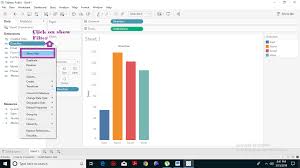
What Are the Filters? Name the Different Filters in Tableau.

Tableau filters are a way of restricting the content of the data that may enter a Tableau workbook, dashboard, or view. 

The Different Types of Tableau Filters are:

  • Extract filters
  • Context filters
  • Data source filters
  • Filters on measures
  • Filters on dimensions
  • Table calculation filter

There Are Three Customer Segments in the Superstore Dataset. What Percent of the Total Profits Are Associated with the Corporate Segment?

Follow these steps:

  1. Drag segment field to the rows shelf. Here, segment consists of Consumer, Corporate, and Home Office 
  2. Double-click on profit field under Measures. 
  3. Right-click on SUM (Profit) under marks card, select Quick Table Calculation, and click on Percent of the total.  For more details Tableau Training

What is the disadvantage of Context Filters?

  • The Context Filter is not frequently changed by the user—if the Filter is changed, the database must be recomputed and the temporary table has to be rewritten, slowing performance.
  • When we set a dimension to context, Tableau creates a temporary table that will require a reload each time the view is initiated. For Excel, Access, and text data sources, the temporary table created is in an Access table format. For SQL Server, MySQL, and Oracle data sources, we must have permission to create a temporary table on our server. For a multidimensional data source, or cubes, temporary tables are not created, and Context Filters defined which Filters are independent and which are dependent.

Can we use non-used columns (columns that are not used in reports but used in data source) in Tableau Filters?

Yes! For example, in a data source, if we have columns like EmpID, EmpName, EmpDept, EmpDsignation, EmpSalary, and in reports we are using EmpName on columns and EmpSalary on rows, we can use EmpDesignation on Filters.

What is the benefit of Tableau Extract file over the live connection?

Extract can be used anywhere without any connection, and we can build our own visualizations without connecting to a database.

How to combine two Excel files with the same fields but different data (different years)?

Suppose, we have five different Excel files (2007.xls, 2008.xls, … 2011.xls) with the same fields (film name, genre, budget, rating, profitability, etc.) but with data of different years (2007 to 2011). Can someone tell me how can I combine the film name, genre, and profitability so that I can see the visualization of 2007 to 2011 in a single chart?

What are the different connections you can make with your dataset?

We can either connect live to our data set or extract data onto Tableau.

  • Live: Connecting live to a data set leverages its computational processing and storage. New queries will go to the database and will be reflected as new or updated within the data.
  • Extract: An extract will make a static snapshot of the data to be used by Tableau’s data engine. The snapshot of the data can be refreshed on a recurring schedule as a whole or incrementally append data. One way to set up these schedules is via the Tableau server.

The benefit of Tableau extract over live connection is that extract can be used anywhere without any connection and you can build your own visualization without connecting to database. For more skills Learn Tableau Online

What are shelves?

They are Named areas to the left and top of the view. You build views by placing fields onto the shelves. Some shelves are available only when you select certain mark types.

What are sets?

Sets are custom fields that define a subset of data based on some conditions. A set can be based on a computed condition, for example, a set may contain customers with sales over a certain threshold. Computed sets update as your data changes. Alternatively, a set can be based on specific data point in your view.

What are groups?

A group is a combination of dimension members that make higher level categories. For example, if you are working with a view that shows average test scores by major, you may want to group certain majors together to create major categories.

13. What is a hierarchical field?

A hierarchical field in tableau is used for drilling down data. It means viewing your data in a more granular level.

What is Tableau Data Server?

Tableau server acts a middle man between Tableau users and the data. Tableau Data Server allows you to upload and share data extracts, preserve database connections, as well as reuse calculations and field metadata. This means any changes you make to the data-set, calculated fields, parameters, aliases, or definitions, can be saved and shared with others, allowing for a secure, centrally managed and standardized dataset. Additionally, you can leverage your server’s resources to run queries on extracts without having to first transfer them to your local machine.

What is the difference between Tableau Workbook and Tableau Packaged Workbook?

Both the Tableau Workbook and Tableau Packaged Workbook are file types used in Tableau.

The Tableau Workbook type of files contains information about worksheets and dashboards that are present within a Tableau workbook. That is, all the information related to fields, aggregation types, styles, formatting, filters, etc are present in these files.

The Tableau Workbook files have an extension as .twb. We can only create these files from a live data connection and share them with users having access to that live connection. So, the .twb files contain metadata related to the existing data connection and does not contain the actual data from the workbook.

The Tableau Packaged Workbook file type is different from the .twb files as it contains both the metadata or information about the data of a workbook and the data extracted from the data source. They have an extension .twbx. The .twbx file type is used in place of a .twb file when you want to share a workbook with a user who does not have access to the live data connection. Thus, in this case, your .twbx file contains data extracted from the source along with the other information about the workbook.

To get in-depth knowledge, enroll for a live free demo on Tableau Online Training

Reasons Why ETL Professionals Should Learn Hadoop

Hadoop’s significance in data warehousing is progressing rapidly as a transitory platform for extract, transform, and load (ETL) processing. Mention about ETL and eyes glaze over Hadoop as a logical platform for data preparation and transformation as it allows them to manage huge volume, variety and velocity of data flawlessly.

Hadoop is extensively talked about as the best platform for ETL because it is considered as an all-purpose staging area and landing zone for enterprise big data.

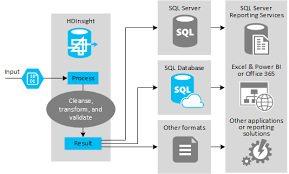
Using Apache Hive as an ETL Tool - Azure HDInsight | Microsoft Docs

To understand the significance of big data and hadoop for ETL professionals read this article to endorse the awareness on why is this the best time to pursue a career in big data hadoop for all data warehousing and ETL professionals.

The spurt of internet users and the adoption of technology by all the conceivable industries through the past two decades began generating data in exponentially expanding volumes. Get more from ETL Testing Online Training

As the data kept growing, owners realized a need to analyze it and thus originated an entirely new domain of Data Warehousing. That laid the foundation for an entirely new domain of  ETL (acronym for Extract Transform Load) – a field which continues to dominate the data warehousing to this date.

Data is the foundation of any Information Technology (IT) system and as long as we are prepared to manipulate and consume it, we will keep adding value to the organization. The modern technological ecosystem is run and managed by interconnected systems that can read, copy, aggregate, transform and re – load data from one another. While the initial era of ETL ignited enough sparks and got everyone to sit up, take notice and applaud its capabilities, its usability in the era of Big Data is increasingly coming under the scanner as the CIOs start taking note of its limitations.

Hadoop for ETL platform

Extract, transform and load processes form the backbone of all the data warehousing tools. This has been the way to parse through huge volumes and data and prepare it for analysis. That notion has been challenged of late, with the rise of Hadoop.

Industry experts place a great emphasis on individuals to learn Hadoop. Josh Rogers, President of Syncsort, global business operations and sales lead says, “Data integration and more specifically, Extraction, Transformation and Loading (ETL), represents a natural application of Hadoop and a precedent to achieving the ultimate promise of  Big Data – new insights. But perhaps most importantly at this point in the adoption curve, it represents an excellent starting point for leveraging Hadoop to tackle Big Data challenges.” For more details ETL Testing Training

Though industry experts are still divided over the advantages and disadvantages of one over the other, we take a look at the top five reasons why ETL professionals should learn Hadoop.

Wider Career Path

The ETL vs. Hadoop debate is gathering momentum by the day and there is no clear cut winner in sight in the near future. They both offer their own set of advantages and disadvantages. There is no generalized solution and the preference of one over the other is often a matter of choice and both the approaches are holding their ground firmly.

If you encounter  Big Data on a regular basis, the limitations of the traditional ETL tools in terms of storage, efficiency and cost is likely to force you to learn Hadoop. Thus, why not take the lead and prepare yourself to tackle any situation in the future? As things stand currently, both the technologies are here to stay in the near future. There can be requirement specific situations where one is preferred over the other and at times both would be required to work in sync to achieve optimal results.

Handle Big Data Efficiently

The emergence of needs and tools of ETL proceeded the Big Data era. As data volumes continued to grow in the traditional ETL systems, it required a proportional increase in the people, skills, software and resources. With the passage of time the huge volume of data began pressurizing the resources and the performance parameters started taking a dip. A number of bottlenecks surfaced in the traditionally smooth ETL processes. As ETL involves reading data from one system, copying and transferring it over the network and writing in another system, the growing volumes of data started adversely affecting the performance parameters.

Systems that contain the data are often not the ones that consume it and Hadoop is changing that concept. It is a data hub in enterprise architecture and presents an inexpensive, extreme performance storage environment to transform and consume data without the need to migrate large chunks of it over the network systems.

At times, all ETL does is to just extract data from one system, perform minor aggregation functions and load it into another system. A majority of it only causes systematic bottlenecks and often does not add any value and for an activity that is essentially non – value add, the costs and time spent is becoming unmanageable.

To get in-depth knowledge, enroll for a live free demo on ETL Testing Certification

New Workday Connector Now Available in Open Connectors

First, if you have ever had to integrate using the SOAP protocol, then you already know that it can be cumbersome to use when compared to using lighter frameworks like REST. Workday’s API is SOAP. Thus, as is the case will all of the connectors in the Open Connectors ecosystem, the Workday Connector converts and normalizes Workday’s native SOAP API to the Open Connectors uniform REST standards.

When using the Workday Connector, you won’t need to learn all the intricacies of Workday’s SOAP API, as it is 100% REST via the Connector:

Second, Workday’s native SOAP API specification does not support bulk data. The new Workday Connector supplements for Workday’s missing bulk API support by providing built-in, ready to use bulk resources. Learn more from Workday Training

For this first release of the Workday Connector, the most requested procure-to-pay workflow was selected and resources were added to support that. The needed resources for Order-to-cash and hire-to-retire will coming soon in a later release.

However, if you don’t care to wait for additional resources to be added, every Connector in the Open Connectors ecosystem is editable and extendable.

If you are familiar with Workday’s SOAP API, you can use Connector Builder to add in what you need. For example, you can easily modify the GET /supplier-classifications resource using Open Connectors built in tooling to modify existing or add new resources:

Take your career with Workday Online Course

All Connectors in the catalog are all standardized to a common set of features, including the ability to programmatically (or manually via UI) query the endpoint and determine what objects and associated object metadata are supported by the endpoint’s API.

Discovery resources are found via clicking on “API Docs” for the Workday Connector in the main Connectors catalog:

By having built-in discovery API resources built-in to the Connector, you now have access to every one of Workday’s 2000+ native resources. You can use the discovery API resources to determine what is available, and then build your own on the fly using the Connector’s “create your own” resources capability.

This is no small feat, given that Workday does not provide out of the box functionality via their SOAP API to query for this information. The Workday Connector actually automatically scrapes Workday’s API documentation website to dynamically support the Connector’s discovery resources!

To summarize, the Workday connector is now available in Open Connectors. Having access to all of Workday’s APIs provides flexibility and quicker time to value for your customers. Also, given that the Workday Connector is REST, it is much easier and consistent to use versus writing directly to Workday’s SOAP API.

To get in-depth knowledge, enroll for a live free demo on Workday Online Training

DevOps workflow in Servicenow Orlando version

DevOps helps improve collaboration between development and operations. It uses data to automatically create, authorize, and close a change request to go from days to minutes. It provides new insights on developer and operator dashboards to improve collaboration and drive behaviors.

Note: The DevOps product is rolling out gradually by region with an initial focus on the Northeast US and the UK. Please reach out to your ServiceNow account manager on availability in your area or other opportunities for early access.

Model your pipeline in DevOps

Once DevOps tools are connected, model a development pipeline and configure notifications to complete the setup.

Before you begin

Role required: sn_devops.admin

About this task

Associate each app in your DevOps environment with a DevOps pipeline. Jenkins declarative and scripted pipelines are supported.

A pipeline is defined as a set of steps that, for DevOps, begins at the planning phase (plans for the work to be done). An app is the item being worked on, and the work is done via commits to a code repository.

Once committed, an orchestration tool picks up the change and sends it through a series of steps up to and including production. For more info Servicenow Certification

Procedure

  1. Set up and associate a DevOps pipeline with Jenkins stages.
    1. Navigate to DevOps > Configure > Pipelines to view and compare the Normal pipeline with your development pipeline.

Normal and Break Fix pipelines are provided when demo data is installed.

  • Navigate to DevOps > Apps & Pipelines > Apps and open the application record.
    • Fill in the Orchestration pipeline field with the full project name as specified in Jenkins.
    • Select Normal Pipeline from the Pipeline lookup list to associate the pipeline with your application, and click Update.
    • Open the application record again and click the Create Stages from Pipeline related link.

Step records are added to the Steps related list.

  • Configure step settings to associate with Jenkins stages so an orchestration task can be created.

Create additional step records if your development pipeline has more than the three stages provided with the Normal Pipeline.

Note:Orchestration stage fields must be configured for step association with Jenkins stages. This field can only be configured from the Steps related list view.

Navigate to DevOps > Configure > Orchestration Tools

Configure Jenkins to send build notifications to the DevOps application.

  1. In Jenkins, click Manage Jenkins, select the ServiceNow DevOps Enabled check box in the ServiceNow DevOps Configuration section, and fill in the fields. Learn more from Servicenow Online Training

Navigate to DevOps > Configure > Orchestration Tools, open the Jenkins record, and associate each orchestration task in the Orchestration Tasks related list with a pipeline step.

Note: The Track field is set to True by default when you discover orchestration tasks. Tracking is required to receive job notifications from Jenkins.

Jenkins job run notifications are sent to the DevOps application. Each task execution notification corresponds to an orchestration task. Because orchestration tasks are mapped to a certain step in your app, you can track the activity in each stage of your pipeline.

Set up DevOps roles, connections, integrate with external tools, then use the Insights dashboard to analyze operational and business reports and gain insight into your DevOps environment.

You can also use the change acceleration feature of DevOps to automatically create a change request for a stage in your development pipeline to accelerate change.

DevOps personas

The DevOps administrator sets up and configures your DevOps application.

The DevOps integration user has inbound access to the tools in your environment to allow integration with the DevOps application.

The DevOps manager oversees the operation of the DevOps application and monitors performance in your DevOps environment.

The DevOps viewer has access to the DevOps application to use in their environment.

DevOps workflow

DevOps integrates with external planning, coding, and orchestration tools and automatically creates change requests at any stage for deployments that require change control.

Change approval policies can be used to automate change request approval to continue deployment through the execution pipeline automatically.

Performance and efficiency in your DevOps environment is monitored and analyzed using the DevOps Insights dashboard. Pipeline executions are visualized on the DevOps App Pipeline UI view. Get more skills from Servicenow Training

DevOps modules

Insights

Analyze operational and business reports including change acceleration, system health, and development to gain insight into your DevOps environment.

Configure

Set up initial configuration connections including planning tools to connect to applications, coding tools to connect to repositories, orchestration tools to connect to tasks, set DevOps properties.

Apps & Pipelines

Manage apps and create pipelines.

Plan

Access your integrated plans, applications, features (mapped from epics), and versions.

Develop

Access your work items (mapped from your planning application stories), and integrated coding tool repositories. Review development activity including branch, commit, commit details, and committers.

Orchestrate

Access your integrated orchestration tasks and task executions. Review pipeline change requests, registered callbacks, and pipeline executions.

Test

View build test summaries and test results.

Administration

View event processors, error log, and inbound events. Create tool integrations.

DevOps Concepts

These concepts are useful to understand with respect to the DevOps application.

Pipeline

A pipeline is defined as a set of steps that, for DevOps, begins with planning (plans for the work to be done). An app is the item being worked on, and the work is done via commits to a code repository. Once committed, an orchestration tool picks up the change and sends it through a series of steps up to, and including, production.

Those steps can include quality checks, like functional, security, load, and behavioral tests as well as deployments, infrastructure provisioning, and more. The ultimate goal is the delivery of fully tested and vetted development features as quickly as possible to production.

Integrations

The DevOps application integrates with external tools by exposing REST endpoints to receive Webhook notifications, or direct REST calls from tools.

API

The DevOps application includes a DevOps API that allows integration with any coding, planning, orchestration, and testing tools.

Orchestration plugin

A Jenkins plugin is provided to enable Change Acceleration so your orchestration tool can communicate with the DevOps app and control certain aspects of pipeline executions.

To get in-depth knowledge, enroll for a live free demo on Servicenow Developer Training

ETL Tools That Do More With Java

The Java platform is a free software download that many of today’s websites and apps can’t run without. Java is practically a requirement for most internal and cloud applications.

Developers use its object-oriented programming language to build desktop and mobile apps. You can write complex ETL (extract, transform and load) processes in Java that go beyond what’s available out of the box in most ETL tools.

If you use Java to script code for data transformations or other ETL functions, you also need an ETL tool that supports Java work. Java is one of the most popular and powerful scripting languages. And there’s an abundance of open source and paid ETLs to choose from that work with Java code. You won’t have any trouble finding one that meets your specific data project needs.

This blog gives you information on some of the best open source ETLs for Java. Some ETLs that used to be open source have become paid services. At the end of the blog, we also list some paid ETLs that might meet your needs for big BI data projects that need pro-level support. For more details ETL Testing Training

Free and open source Java ETLs

1. Apache Spark

Spark has become a popular addition to ETL workflows. The Spark quickstart shows you how to write a self-contained app in Java. You can get even more functionality with one of Spark’s many Java API packages.

Spark has all sorts of data processing and transformation tools built in. It’s designed to run computations in parallel, so even large data jobs run fast—100 times faster than Hadoop, according to the Spark website. And it scales up for big data operations and can run algorithms in stream. Spark has tools for fast data streaming, machine learning and graph processing that output to storage or live dashboards.

Spark is supported by the community. If you need help, try its mailing lists, in-person groups and issue tracker.

2. Jaspersoft ETL

Jaspersoft ETL is a free platform that works with Java. With this open source ETL tool, you can embed dynamic reports and print-quality files into your Java apps and websites. It extracts report data from any data source and exports to 10 formats.

If you’re a developer, Jaspersoft ETL is an easy-to-use choice for data integration projects. You can download the community edition for free. The open source version is recommended for small work groups. For larger enterprises and professional-level support, you might opt for the enterprise edition. 

3. Scriptella

Scriptella is an open source ETL tool that was written in Java. It was created for programmers to simplify data transformation work. To embed or invoke Java code in Scriptella, you need the Janino or JavaScript bridge driver or the Service Provider Interface (SPI). The SPI is a Scriptella API plug-in that’s a bit more complicated. See the Using Java Code section in the Scriptella documentation for more options on using Java in Scriptella.

Scriptella supports cross-database ETL scripts, and it works with multiple data sources in a single ETL file. This ETL tool is a good choice to use with Java when you’ve got source data in different database formats that needs to be run in a combined transformation. For more info ETL Training

4. Apatar

If you work with CRM systems, Apatar, a Java-based open source ETL tool, might be a good choice. It moves and synchronizes customer data between your own systems and third-party applications. Apatar can transform and integrate large, complex customer datasets. You can customize this free tool with the Java source code that’s included in the package.

The Apatar download saves time and resources by leveraging built-in app integration tools and reusing mapping schemas that you create. Even non-developers can work with Apatar’s user-friendly drag-and-drop UI. No programming, design or coding is required with this cost-saving, but powerful, data migration tool that makes CRM work easier.

5. Pentaho Kettle

Pentaho’s Data Integration (PDI), or Kettle (Kettle E.T.T.L. Environment), is an open source ETL tool that uses Pentaho’s own metadata-based integration method. Kettle documentation includes Java API examples.

With Kettle, you can move and transform data, create and run jobs, load balance data, pull data from multiple sources, and more. But you can’t sequence your transformations. You’ll need Spoon, the GUI for designing jobs and transformations that work with Kettle’s tools: Pan does data transformation, and Kitchen runs your jobs. However, Spoon has some reported issues. Learn more from ETL Testing Course

6. Talend Open Source Data Integrator

Go past basic data analysis and storage with Talend Open Studio for Data Integration, a cloud-friendly ETL tool that can embed Java code libraries. Open Studio’s robust toolbox lets you work with code, manage files, and transform and integrate big data. It gives you graphical design and development tools and hundreds of data processing components and connectors.

With Talend’s Open Studio, you can import external code, create and expand your own, and view and test it in a runtime environment. Check your final products with Open Studio’s Data Quality & Profiling and Data Preparation features.

7. Spring Batch

Spring Batch is a full-service ETL tool that is heavy on documentation and training resources. This lightweight, easy-to-use tool delivers robust ETL for batch applications. With Spring Batch, you can build batch apps, process small or complex batch jobs, and scale up for high-volume data processing. It has reusable functions and advanced technical features like transaction management, chunk-based processing, web-based admin interface and more. For more skills ETL Testing Online Training

8. Easy Batch

The Easy Batch framework uses Java to make batch processing easier. This open source ETL tool reads, filters and maps your source data in sequence. It processes your job in a pipeline, writes your output in batches to your data warehouse, and gives you a job report. With Easy Batch’s APIs, you can process different source data types consistently. The Easy Batch ETL tool transforms your Java code into usable data for reporting, testing and analysis.

9. Apache Camel

Apache Camel is an open source Java framework that integrates different apps by using multiple protocols and technologies. It’s a small ETL library with only one API for you to learn. To configure routing and mediation rules, Apache Camel provides Java object-based implementation of Enterprise Integration Patterns (EIPs) using an API or declarative Java domain-specific language. EIPs are design patterns that enable enterprise application integration and message-oriented middleware.

Apache Camel uses Uniform Resource Identifiers (URIs), a naming scheme that refers to an endpoint that provides information. Examples are what components are used, the context path and the options applied against the component. This ETL tool has more than 100 components, including FTP, JMX and HTTP. It runs as a standalone application in a web container like Apache Tomcat, a JEEE application server like WildFly, or combined with a Spring container.

10. Bender

Amazon’s AWS Lambda runs serverless code and does basic ETL, but you might need something more. Bender is a Java-based framework designed to build ETL modules in Lambda. For example, this open source ETL appends GeoIP info to your log data, so you can create data-driven geological dashboards in Kibana. Out of the box, it reads, writes and transforms input that supports Java code: Amazon Kinesis Streams and Amazon S3.

Bender is a robust, strongly documented and supported ETL tool that enhances your data operations. It gives you multiple operations, handlers, deserializers and serializers, transporters and reporters that go beyond what’s available in Lambda.

To get in-depth knowledge, enroll for a live free demo on ETL Testing Certification

Build a Real-Time Data Visualization Dashboard With Couchbase Analytics and Tableau

Couchbase Server is a hybrid NoSQL database that supports operational and analytical workloads. Couchbase Analytics in Couchbase Server 6.0 brings “NoETL for NoSQL,” enabling users to run ad-hoc analytical queries on JSON data in their natural form — without the need for transformation or schema design — by leveraging a massively parallel processing (MPP) query engine.

Every enterprise has already invested in a visualization tool and therefore has a critical need to leverage existing investments. This includes not only tooling but also skillsets and training of business reporting and dash-boarding teams.

I’ve always believed that the proof is in the proverbial pudding when it comes to analyzing and visualizing JSON data in real time. For more info Tableau Training

Data Model

Try It out in 5 Clicks: Setting up a Cluster With Couchbase Analytics

If you are new to Couchbase, you can download Couchbase Server 6.0 and try this on your own. You can choose to install Couchbase on single machine or install a cluster. The instructions below are for adding a new node to a cluster. If you are running everything on a single machine, please ensure that data and analytics services are running on the node.

A subset of the dataset used in the demo is available for download. You will need to download and extract the demo dataset.

Use the “cbimport” utility to import this dataset in your own Couchbase 6.0 cluster. The command to do this on the Mac is:

/Applications/Couchbase\ Server.app/Contents/Resources/couchbase-core/bin/cbimport json -c &lt;cluster_host_name_or_IP&gt; -u &lt;username&gt; -p &lt;password&gt; -b cars -f lines -d file://<unzipped_list.json_file> -g “#UUID#”

Now that you’ve got the readings from the cars on the road available in the operational cluster, let’s add an analytics node to the cluster to start exploring and analyzing the readings being sent in real time. You’ll need to login to the Couchbase admin console to follow the steps below. You can also follow along with the demo video mentioned above.

  1. Click on “Add Server” on the top right corner of your screen.
  2. You’ll need to provide the details in the dialog as follows:
  3. In the same dialogue, click on “Add Server” button
  4. Choose the amount of memory to assign to the Couchbase Analytics node
  5. Finally click “Rebalance”. Learn more skills from Tableau Certification

In 5 clicks, you have added a brand new service Couchbase Analytics to your cluster.

Now let’s make the operational data available for analytics by creating a shadow dataset.

create dataset on cars where `type`=”telematics”;

connect link Local;

By running the above statements in the Couchbase Analytics workbench, you have now created a shadow dataset for data analysis and exploration:

Data Exploration

Let’s start exploring the data. If I were the operations manager, I would like to know if the problem is widespread and if it affects more than one type of car.

Total # of cars with TPMS ON
select * from cars 
where TPMS="ON" 
limit 1000
Types of cars having with this condition
select ModelType, count(*) as count from cars 
where TPMS="ON"
group by ModelType
Sample result
[
  {
    "count": 1052,
    "ModelType": "Compact car"
  },
  {
    "count": 1106,
    "ModelType": "Hybrid"
  }
]

If you are a SQL developer, the queries above should be familiar. Couchbase Server enables analytics teams to bring their existing SQL skills to the schema-less and nested world of JSON data.

Are there any false positives?
select * from cars 
where TPMS="ON" 
AND (EVERY tp in cars.TirePressure  SATISFIES tp > 30)
limit 1000

Now let’s rule out a false positive. There may be a situation where the TPMS indicator may be sending a faulty reading but the actual tire pressure values might be ok. The actual tire pressure readings are being sent as a JSON array. Let’s check if they are actually low.

The above query returns those values where the TPMS indicator is “ON” but the actual tire pressure is above 30 psi which is the safe limit. In case you didn’t notice, the analytics engine is working off of the same JSON arrays modeled in the application so there is no transformation of data which is analyzed in its natural JSON form. #NoETLforNoSQL. Get more skills from Tableau Online Course

Creating a Real-Time Visualization in Tableau

Let me now walk through the steps of connecting Tableau with Couchbase Analytics.

  1. Open Tableau desktop application and choose “Connect to Other Database (ODBC)”
  2. Choose the option to connect using a DSN (data source name)
  3. Choose the DSN created in the previous step
  4. Click the “Sign In” button and navigate to the Tableau workbook interface
  5. On the left side of the screen, select “CData” as the database.
  6. Click on the “Select Schema” dropdown and click on the search icon and choose Couchbase.

Click on the search icon in the table section.

Create a workbook and choose the dimension such as model type and measure for the count of distinct VIN to create a simple graph.

Achieving real-time operational analytics is business imperative, but in doing so, organizations face obstacles, such as:

  • provisioning data in legacy data architectures taking weeks, or even months
  • a lack of skills required to modernize within their traditional IT department
  • difficulty building business cases for modernization in the absence of a fast and direct return on investment
  • limited insight due to the complexity of custom reporting and lack of operational dash-boarding.

Couchbase Analytics addresses these concerns and makes it really easy to run hybrid operational and analytical workloads in a single Couchbase cluster.

The hybrid architecture in Couchbase enables real-time analysis of JSON data generated by operational applications and avoids the heavy lifting of data lakes, data warehouses, and complex ETL processes.

To get in-depth knowledge, enroll for a live free demo on Tableau online Training

Integrate Azure platform as a data source

Integrate Microsoft Azure with Event Management. To add the Azure platform as a data source, configuration is required in the Azure platform.

Before you begin

Role required: evt_mgmt_admin and web_service_admin

The Event Management integration with Azure supports the Azure Classic Metric Alert format, also known as Insights Alerts. For this format, Event Management provides a dedicated listener, Azure Events Transform Script. Several event rules for this format are provided with the base system. For information about how to receive events from other Azure formats. For more info Servicenow Online Training

Activate the inbound event azure endpoint to enable receiving Azure platform alerts in Event Management, which works without security authentication:

  1. Navigate to System Web Services > Scripted Web Services > Scripted Rest APIs.
  2. Locate and click the Inbound Event script.
  3. In the Resources area, click inbound event azure.
  4. Select Active and then click Update.

Dedicated listener

Configure a dedicated listener that supports the Azure Classic Metric Alert format, as follows:

  1. Open the Azure platform transform script, navigate to Event Management > Event Listener (Push) > Listener Transform Scripts.
  2. In the Listener Transform Scripts page, click Azure Events Transform Script.

You can select to send Azure alerts either through the instance or the MID Server.

About this task

When an Azure platform alert message arrives, Event Management:

  • Extracts information from the original Azure platform alert message to populate required event fields and inserts the event into the database.
  • Captures specified content in the additional_info field.

Procedure

  1. In the Azure platform portal, create alert rules using the Alerts (Preview) interface.

The definition of an alert rule in Azure platform portal has these parts:

  • Target: Specific Azure platform resource that is to be monitored.
    • Criteria: Specific condition or logic that, when seen in Signal, should trigger action.
    • Action: Specific call sent to a receiver of a notification – email, SMS, Webhook, and so on.
  • In the Webhook column, specify the endpoint URL in the format: https://<instance-name>.service-now.com/api/global/em/inbound_event_azure.
  • What to do next
  • Receive events from other Azure formats Event Management can receive events from other Azure formats, such as Azure Activity Alert (also known as audit log), and Azure log Alert (also known as unified log). Use this generic JSON target URL to collect events from other Azure formats:https:/<<INSTANCE>>/api/global/em/inbound_event?source=genericJson. This generic URL can be used as-is, and requires an event rule to be configured to populate the correct fields in the alert.
  • Example of the Transform and Compose Alert Output section of an event rule to show the configuration to receive an alert when receiving alert rules from Azure in the Azure Activity Alert format. For more details Servicenow Certification

Configure listener transform scripts

  • Configure a push connector to connect to an external event source, using custom script that processes the collected event messages and transforms it to the required event format. Select to send events either through the MID Server or the instance, in each case using the URL of the required format.

Before you begin

Role required: evt_mgmt_admin

About this task

The listener transform script accepts event messages that are generated by external event sources.

Configure the connector to listen to an external event source. Using custom listener transform script, send the event messages through either the MID Server or the instance. For more skills Servicenow Developer Training

Note: You can use this generic JSON target URL to collect events:https:/<<INSTANCE>>/api/global/em/inbound_event?source=genericJson. This URL can be used as-is and requires an event rule to be configured.

Procedure

  1. Navigate to Event Management > Event Listener (Push) > Listener Transform Scripts.
  2. Click New or click the listener transform script that you want to modify, for example, AWS or Azure.
  3. Fill in the fields in the form, as needed.
  4. In the Script section:
    1. If the value selected for the Type field is MID, the Transform script field appears. In this field, specify or search for the name of the MID script include that accepts event messages that the required external event source generates and that the script parses into the required event format. Use this naming convention for the script: TransformEvents_<your source>
    2. If the value selected for the Type field is Instance, the Script editor appears. In the Script editor, enter the customized script that accepts event messages that the required external event source generates and that the script parses into the required event format.

Example, showing fields that have been transformed, being added to an event form.

(function process(/*RESTAPIRequest*/ request, body) {
	/*Function that receives a JSON object, adding all its fields to the Additional information object. The field name is a concatenation of the field key and the parent field key if it exists.*/
	function updateAdditionalInfo(event, field,jsonObject,additionalInfo) {
        for (var key in jsonObject) {
            var newKey = key;
            if (field != "") {
                newKey = field + '_' + key;
            }
			// You can do some transformation here and set fields on the event
			//if(key == "MySource")
			//   event.source = jsonObject[key];
            additionalInfo[newKey] = jsonObject[key];
        }
    }
    
    try
	{		
        gs.info("TransformEvents_generic received body:" + body);
		var jsonObject = JSON.parse(body);
        var event = new GlideRecord('em_event');
		event.source = "GenericJson"; //TODO: Need to define
        event.event_class = "GenericJsonClass"; //TODO: Need to define
        event.severity = "5";
		
        var additionalInfo = {};
        updateAdditionalInfo(event, "",jsonObject,additionalInfo);
		/*Iterates over Additional information JSON object and adds all nested objects' fields as fields of the Additional information object*/
        var notDone = true;
        while (notDone) {
            notDone = false;
            for (var key in additionalInfo) {
                if (Object.prototype.toString.call(additionalInfo[key]) == '[object Object]') {
                    notDone = true;
                    updateAdditionalInfo(event, key,additionalInfo[key],additionalInfo);
					additionalInfo[key] = "";
                }
            }
        }
		gs.info("TransformEvents_generic generated additional information:" + JSON.stringify(additionalInfo));
        event.additional_info = JSON.stringify(additionalInfo);
        event.insert();
	}
	catch(er){
		gs.error(er);
		status=500;
		return er;
	}
	return "success";
})(request, body);

Integrate AWS platform as a data source

Integrate Amazon Web Services (AWS) with Event Management. To add AWS platform as a data source, configuration is required in the AWS platform.

Integrate Azure platform as a data source

Integrate Microsoft Azure with Event Management. To add the Azure platform as a data source, configuration is required in the Azure platform.

To get in-depth knowledge, enroll for a live free demo on Servicenow Training

Design a site like this with WordPress.com
Get started