Enable bidirectional synchronization of records between Microsoft Azure DevOps with ServiceNow® Agile Development 2.0 by integrating the two applications.
For example, if you update a record in Azure DevOps, the update is reflected in Agile Development. Similarly, if you update a record in Agile Development, the update is reflected in Azure DevOps.
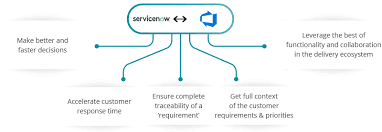
Integration of Azure DevOps with Agile Development enables you to do the following:
- View available Azure DevOps projects in Agile Development.
- Perform a bulk import of records from Azure DevOps to Agile Development.
- Perform single record updates between Azure DevOps and Agile Development.
- Avoid duplicating record update entries in Azure DevOps and Agile Development.
- Plan, track, and update your tasks from a single application.
Request apps on the Store
Visit the ServiceNow Store website to view all the available apps and for information about submitting requests to the store. For cumulative release note information for all released apps.Install Microsoft Azure DevOps Integration for Agile Development
Install the Microsoft Azure DevOps Integration for Agile Development
Connect Agile Development and Azure DevOps
Establish a connection between Agile Development and Azure DevOps using the sn_ado_int.user role. For more info Servicenow Training
Create an Azure DevOps connection alias
Create a Basic Auth credential and an HTTP(s) connection which will together be used as a connection alias to establish a connection with Azure DevOps.
Procedure
- Create a Connection & Credential alias
- Create Basic authentication credentials.
- Create Create an HTTP(s) connection Create an HTTP(s) connection.Note:
- A connection alias (sn_ado_int.Azure_DevOps) is available by default.
- You must create a connection alias for every Azure DevOps organisation that you use.
Create an Azure DevOps instance
Create an Azure DevOps instance record using the connection alias that you created. This instance is used to establish an integration between Agile Development and Azure DevOps.
Procedure
- Navigate to Agile Azure DevOps Integration > Azure DevOps Instances.
- Click New.
- On the form, fill in the fields.
Connect to Azure DevOps
Connect Azure DevOps with Agile Development to enable the integration.
Procedure
- Navigate to Agile Azure DevOps Integration > Azure DevOps Instances.
- Open your Azure DevOps instance record.
- Click Connect.If the State field on the Azure DevOps Instance record shows:
- Connected, the connection is successful.
- Not connected, the connection could not be established. You can view the reason for the failure in the error message.
Generate a default map configuration between Azure DevOps and Agile Development
Generate a default map configuration to map records from Azure DevOps to Agile Development.
Before you begin
- Connect Agile Development and Azure DevOps.
- Role required: sn_ado_int.user Get more from Servicenow Developer Training
About this task
When you import available epics, stories, and issues from Azure DevOps, this data is stored in tables as defined in the map configuration. You can customize map configuration for tables, fields, and states from Azure DevOps to Agile Development.
You cannot import an issue from Azure DevOps to Agile Development if the table map does not exist for this issue type.
Procedure
- Navigate to Agile Azure DevOps Integration > Azure DevOps Instances.
- Open your Azure DevOps instance record.
- Click Create Mappings.Note: If a mapping already exists, the Create Mappings button is not displayed.
Default map configuration
Understand the default field map configuration, for epics and stories, between Azure DevOps and Agile Development.
By looking at the default map configuration, you can see how work item types in Azure DevOps are mapped in Agile Development. You can also see how fields are mapped between the two applications.
You can view the default map configuration tables as follows.
- Navigate to Agile Azure DevOps Integration > Azure DevOps Instances.
- Open your Azure DevOps instance record.
- From the Table maps related list, open the record for a user story or epic.
The following table lists the default field map configuration for a story and epic.
To get in-depth knowledge, enroll for a live free demo on Servicenow Online Training
 java programming