What is Tableau?
Tableau is an awesome data visualization tool that is used for data analysis and business intelligence. Tableau helps us to create a wide variety of visualization to interactively present the data and showcase insights. It provides tools that allow us to drill down data and see the impact in a visual format that can be easily understood.
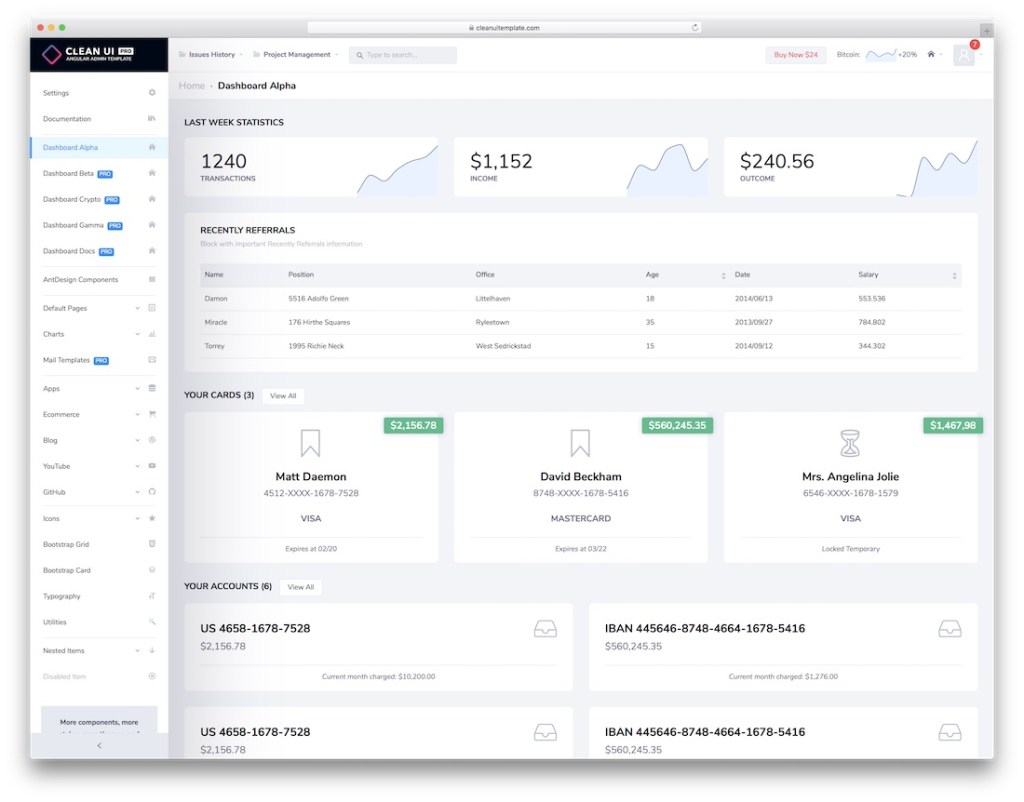
Here, we will be discussing about how to embed Tableau dashboards in Angular applications. If you are new to Tableau Training
Tableau Javascript API
We are going to utilize Tableau Javascript API for embedding the report.
The Tableau JavaScript API uses an object model. The entry point into the object model is to instantiate a new Viz object as follows:
var viz = new tableau.Viz( /* params omitted */ );Steps to do
Prerequisites — Get the visualization url of your Tableau report/dashboard
Let’s follow the below steps for embedding the report in Angular application:-
Step 1: Adding API file in index.html
As a first step we need to add the below Tableau API file in the index.html of our Angular application. Get more skills from Tableau Advanced Training
<script type=”text/javascript” src=”https://public.tableau.com/javascripts/api/tableau-2.min.js"></script>Step 2: Adding a div for Tableau visualization
Next, we need to add a div in our component’s html file for displaying the Tableau report.
<div id="vizContainer" style="display: flex; justify-content: center"></div>This div container will be used to hold the Tableau content.
Step 3: Invoking Tableau API
In our Angular component, we need to declare a variable named ‘tableau’ because it is the reference for Tableau API.
declare var tableau: any;Add a component variable to hold the Viz object that is going to be created.
viz: any;
Finally, in the ngOnInit method, instantiate a new Viz object, call the Viz constructor and pass a reference to the div container on the HTML page, the URL of the visualization on Tableau Server, and a set of options. Get more from Tableau Server Training
var placeholderDiv = document.getElementById('vizContainer');
// Replace this url with the url of your Tableau dashboard
var url = 'https://public.tableau.com/views/All_Reports_0/Dashboard1?:embed=y&:display_count=yes';
var options = {
        hideTabs: true,
        width: "80%",
        height: "500px",
        onFirstInteractive: function() {
              // The viz is now ready and can be safely used.
              console.log("Run this code when the viz has finished     loading.");
        }
};
// Creating a viz object and embed it in the container div.
this.viz = new tableau.Viz(placeholderDiv, url, options);
And we are done, now Tableau dashboard will get displayed in your Angular application as shown below 🙂
What is the usage of ‘options’?
While initializing a Viz object, we can specify how the view is initially rendered by passing options like:
- Width and Height
- Show or hide the toolbar and tabs
- Call a callback function when the visualization becomes interactive or when the width and height are known
To get in-depth knowledge, enroll for a live free demo on Tableau online Training
 java programming